
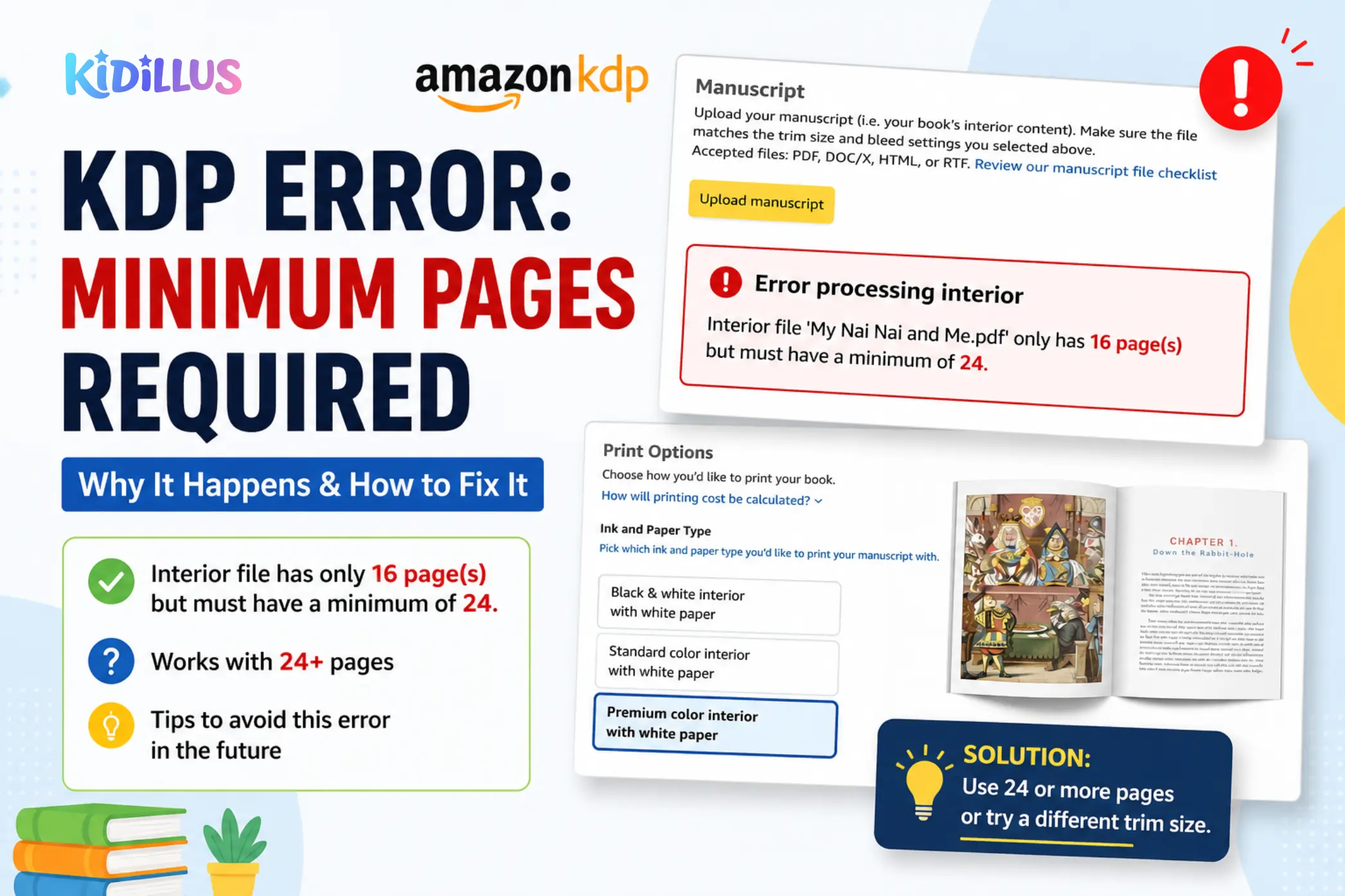
Changing trim size will NOT fix this error. The only fix is meeting KDP's minimum page requirement: 24 pages for Premium Color and 72 pages for Standard Color. Add blank, activity, or bonus pages to reach the minimum.
You have spent weeks writing and illustrating your children's book. You upload the final PDF to Amazon KDP — and then you see this:
"Interior file only has 16 pages but must have a minimum of 24."
Or maybe you see this one:
"Book must have a minimum of 72 pages."
Frustrating — especially when you know your book is complete and ready to publish. Many authors try changing trim sizes, switching between paperback and hardcover, or reformatting their file — but nothing works.
That is because trim size is not the problem.
This is a KDP print requirement based on your interior color setting — and the only real fix is understanding exactly what KDP requires and adding the right number of pages to your book.
This guide covers everything: why this error happens, what the exact requirements are in 2026, and the cleanest ways to fix it without ruining your book.
Why Trim Size Changes Do NOT Fix This Error
This is the most common mistake authors make when they see this error. They try switching from 8.5 × 8.5 to 8 × 10, or from landscape to portrait — and the error stays.
The reason is simple: KDP's minimum page requirements are tied to your color setting, not your trim size.
It does not matter whether your book is square, portrait, landscape, small, or large. If your interior color setting is set to Standard Color, KDP requires a minimum of 72 pages on that order — regardless of dimensions.
❌ What Will NOT Fix This Error
- Changing trim size (8.5×8.5, 8×10, 10×8, etc.)
- Switching between paperback and hardcover
- Reformatting your PDF at a different resolution
- Changing bleed settings
- Re-exporting from a different software
The Real Reason: KDP's 2026 Minimum Page Requirements
Amazon KDP has specific minimum page counts depending on which interior color setting you choose. In 2026, these are the confirmed requirements:
| Interior Color Setting | Minimum Pages Required | Best For |
| ✅ Premium Color | 24 pages minimum | Children's picture books, board books, illustrated books |
| ⚠️ Standard Color | 72 pages minimum | Cookbooks, activity books, longer illustrated content |
| Black & White | 24 pages minimum | Chapter books, novels, text-heavy books |
💡 Key Insight for Children's Book Authors
For most children's picture books, Premium Color is the right setting — and the requirement is only 24 pages. If you are currently set to Standard Color and seeing the 72-page error, simply switching to Premium Color will drop your requirement to 24 pages. For most short picture books, this alone solves the problem.
Premium Color vs Standard Color — Which Should You Choose?
Many authors accidentally select Standard Color because it sounds like the default option. But for children's books, Premium Color is almost always the better choice — and it is now the more accessible one too.
| Feature | Premium Color | Standard Color |
| Minimum pages required | 24 pages | 72 pages |
| Print quality | Higher quality, vibrant colors | Good quality |
| Print cost per book | Slightly higher | Slightly lower |
| Best for | Picture books, illustrated books | Longer books, activity books |
| Recommended for children's books | ✅ Yes | ❌ Not ideal for short books |
How to Fix the Error — Step by Step
Step 1: Check Your Interior Color Setting First
Before adding any pages, go to your KDP dashboard and check what interior color setting your book is using.
- Log in to kdp.amazon.com
- Open your book project → go to Paperback Content
- Look for the Interior & Paper Type section
- Check if it says Premium Color or Standard Color
If you are on Standard Color: Switch to Premium Color first. This immediately drops your minimum requirement from 72 pages to 24 pages. For most short picture books, this alone fixes the error.
If you are already on Premium Color: Your book needs to reach 24 pages. Move to Step 2.
Step 2: Count Your Current Pages
Open your PDF and count the total pages — including the cover pages if they are part of your interior file. KDP counts every page in your uploaded interior PDF.
Find out exactly how many pages you need to add to reach the minimum.
Example: If your book has 18 pages and the requirement is 24, you need to add 6 more pages.
Step 3: Add Pages the Right Way
Here are the best ways to add pages without hurting your book's quality or reader experience:
📄 Blank / Decorative Pages
Add a simple full-color decorative page using your book's color palette. Looks intentional and professional. Adds 1–2 pages easily.
👤 About the Author Page
Add a short author bio with a photo or illustrated avatar. This is standard in most published picture books and adds credibility.
🎨 Coloring Pages
Take 1–2 illustrations from your book, convert them to black and white outlines, and add them as bonus coloring pages. Kids love this.
✏️ Activity Pages
Add a simple "Draw your own" prompt, a maze, word search, or spot-the-difference based on your story's theme.
📚 Dedication / Copyright Page
If your book is missing a proper dedication page, copyright page, or title spread — add these. Every professionally published book has them.
📖 "Books by This Author" Page
If you have other books — or plan to publish more — add a simple page listing your titles. Also works as a coming soon page.
✅ Pro Tip
Adding coloring pages or activity pages at the end of your book is not just a page-count fix — it is a genuine value add that parents love. Books with bonus activities often get better reviews and stronger word-of-mouth.
Common KDP Error Messages — What They Mean
| Error Message | Cause | Fix |
| "Interior file only has X pages but must have a minimum of 24" | Book is under 24 pages on Premium Color setting | Add pages to reach 24 |
| "Book must have a minimum of 72 pages" | Book is on Standard Color setting | Switch to Premium Color first |
| "Cover dimensions do not match interior" | After adding pages, cover spine width changed | Regenerate cover with updated page count |
⚠️ Important: Update Your Cover After Adding Pages
Every time you change your page count, the spine width of your cover changes. If you add 6 pages to fix the interior error, you must also regenerate and re-upload your cover file with the new page count. Use KDP's Cover Calculator to get the exact spine width. Uploading the old cover will trigger a cover dimensions error.
What Is the Standard Page Structure for a 24-Page Children's Book?
If you are building your book to exactly meet the 24-page minimum on Premium Color, here is a clean professional layout you can follow:
| Pages | Content |
| Pages 1–2 | Front endpapers (solid color or pattern) |
| Page 3 | Half-title page (book title only) |
| Page 4 | Copyright & dedication page |
| Pages 5–20 | Story content — 16 pages (8 double-page spreads) |
| Page 21 | About the Author |
| Pages 22–23 | Bonus coloring page or activity page |
| Page 24 | Back endpaper |
Frequently Asked Questions
Does switching trim size fix the minimum page error?
No. Trim size has no effect on KDP's minimum page requirement. The requirement is based entirely on your interior color setting — Premium Color requires 24 pages, Standard Color requires 72 pages, regardless of dimensions.
What is the difference between Premium Color and Standard Color on KDP?
Premium Color produces higher quality, more vibrant color printing and is designed for illustrated books. It requires a minimum of 24 pages. Standard Color is suitable for longer books and requires a minimum of 72 pages. For children's picture books, Premium Color is almost always the correct choice.
Can I publish a children's book with fewer than 24 pages on KDP?
No — KDP's minimum for any print book is 24 pages on Premium Color. If your story is genuinely shorter, you will need to add front matter, back matter, activity pages, or decorative pages to reach 24.
Will blank pages look bad in my printed book?
Plain blank white pages can look unfinished. Instead, use a simple decorative page — a solid color matching your book's palette, a subtle pattern, or a character illustration. These look intentional and professional.
I added pages but now my cover shows an error. What happened?
Adding pages changes your book's spine width, which means your cover dimensions are now incorrect. You need to recalculate your spine width using KDP's Cover Calculator and re-upload your cover with the updated dimensions.
Does this apply to hardcover books too?
Yes. KDP hardcover books also have minimum page requirements. Hardcover case-laminate books require a minimum of 75 pages. For most short children's picture books, paperback with Premium Color is the recommended format.
Quick Checklist: Fix KDP Minimum Page Error
Step 1 — Check your color setting:
- Go to KDP dashboard → Paperback Content → Interior & Paper Type
- If Standard Color → switch to Premium Color immediately
- Premium Color minimum = 24 pages
Step 2 — Count your pages:
- Open your interior PDF and count total pages
- Calculate how many pages you need to add
Step 3 — Add pages professionally:
- Add front matter: half-title page, copyright page, dedication page
- Add back matter: About the Author, coloring pages, activity pages
- Add decorative endpapers if missing
Step 4 — Update your cover:
- Use KDP Cover Calculator with new page count
- Regenerate cover file with updated spine width
- Re-upload cover before submitting
Step 5 — Re-upload and review:
- Upload updated interior PDF
- Use KDP Previewer to check all pages look correct
- Order a proof copy before publishing live
The Bottom Line
The KDP minimum page error is one of the most common frustrations for children's book authors — but it has a straightforward fix once you understand the cause.
The key things to remember:
- Trim size changes will not fix this error — stop trying different dimensions
- Premium Color = 24 pages minimum — the right setting for most children's books
- Standard Color = 72 pages minimum — not suitable for short picture books
- Add pages intentionally — coloring pages, activity pages, and back matter add real value
- Always update your cover after changing your page count
If you are struggling with KDP formatting, file preparation, or getting your book upload-ready, Kidillus can help. We handle everything from interior formatting to cover sizing — so your book uploads correctly the first time.
Need help formatting your children's book for KDP? Get a free quote from Kidillus — we've helped hundreds of authors get their books live on Amazon without the technical headaches.
Related Articles:
Amazon KDP 2026 New Updates: Everything Self-Published Authors Need to Know
How to Use Amazon KDP A+ Content (A Simple Guide for Book Creators)
Don’t Let Your Children’s Book Get Buried: A Creator’s Guide to Amazon KDP Metadata